Short answer: on three monitors, the Dock jumps to whichever screen's edge your pointer pushes against. Put it on a side edge that only one screen has free, or lock it to one display. On a single ultrawide, there is nowhere to jump to, but a bottom Dock sits far from the corners.
Why three screens make it worse
The Dock belongs to no screen. Push the pointer against the Dock's edge on any display and it moves there. With three screens side by side and the Dock at the bottom, every screen has a free bottom edge, so there are three places it can land, and you cross bottom edges all day reaching for taskbars, video controls and status bars.
Use a side edge
Move the Dock to the left or right in System Settings › Desktop & Dock. A side Dock can only appear on a screen whose side edge is free. In a row of three, only the outermost left edge (or right edge) is free, so the Dock has one home. If your screens are stacked or offset, check the arrangement in System Settings › Displays › Arrange: any screen with a free edge on that side counts.
Line up the arrangement
Drag the screens in Displays › Arrange so their edges meet exactly. A screen that sits a little lower than its neighbor leaves a sliver of free edge, and the Dock can land there. Put the menu bar (the main display) on the screen you look at most; the Dock returns there after sleep.
A single ultrawide
- A bottom Dock sits in the middle, a long way from windows at the far edges. A side Dock on the side you use most is closer.
- The Dock's size is in points, so on a high-resolution ultrawide it can look small. Set the size you like, then lock it so it stays.
- Plugging the ultrawide into a laptop makes two screens again. The laptop's own bottom edge becomes a second home for the Dock.
Lock it to one display
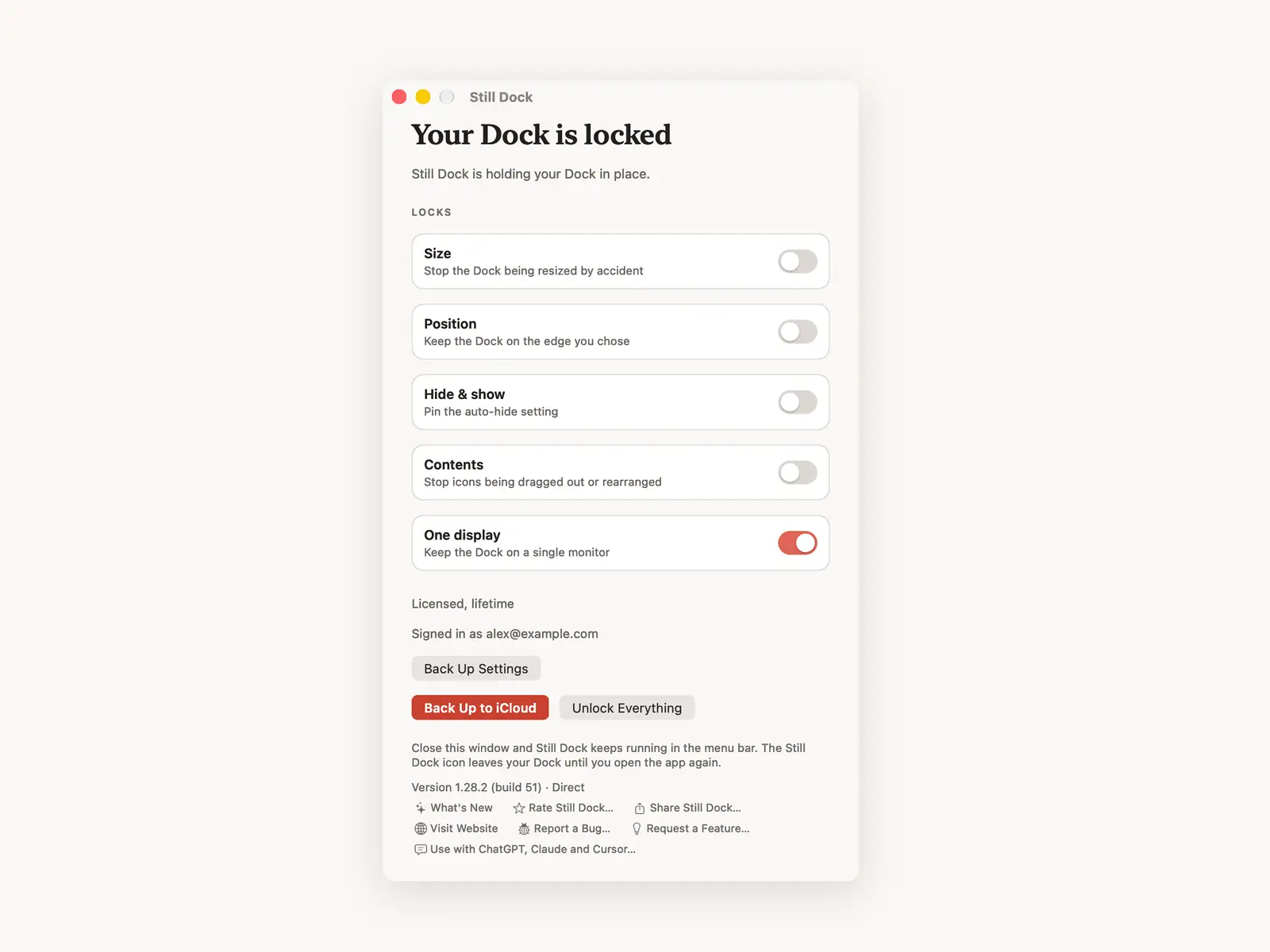
macOS has no setting to pin the Dock to a screen. Still Dock's One display lock does that, in both the direct download and the Mac App Store version (Pro). It keeps the Dock where you want it whichever edge the pointer touches. Need to move it on purpose? Turn the lock off for a moment, or with the position lock on, use "Hold Option to Move the Dock Once".
Common questions
Can I have a Dock on each screen?
No. macOS shows one Dock at a time. See can you show the Dock on all screens.
Why does the Dock change size between my monitors?
Screens with different scaling show the same Dock size at different physical sizes. See Dock resizes on an external monitor.
Does turning off separate Spaces help?
It keeps the Dock on the main display, at the cost of per-screen Spaces and full screen. Details in keeping the Dock on one screen.