Questions
Is this for my own Mac, or for Macs other people use?
Both, and they need different things. On your own Mac the point is the accident: one brush of the divider and every icon is the wrong size, with no undo in macOS. The normal locks cover that and come off whenever you want. On a Mac other people use, a shared family Mac, a front desk, a shop display, a classroom or a kiosk, the point is that the Dock you set up is still the Dock next month. There the permanent lock installs a macOS configuration profile, which survives Terminal, a restart and deleting Still Dock. It is the wrong choice for your own Mac and the right one for a machine you hand to somebody else.
Can I lock the Dock without an app?
Yes. macOS has had these settings for years, and the Terminal commands are on this page, with a full walk-through in locking the Dock without installing anything. Apple never gave them a switch.
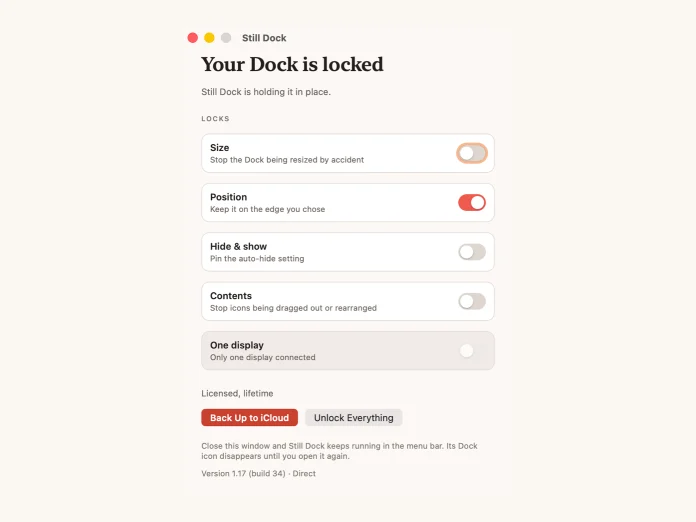
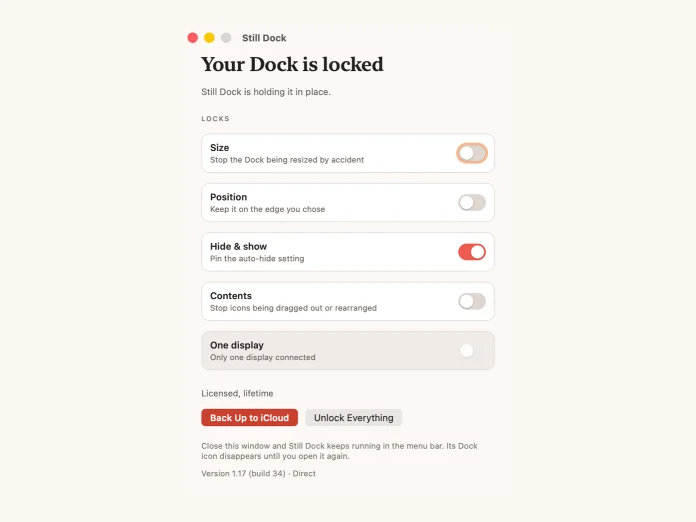
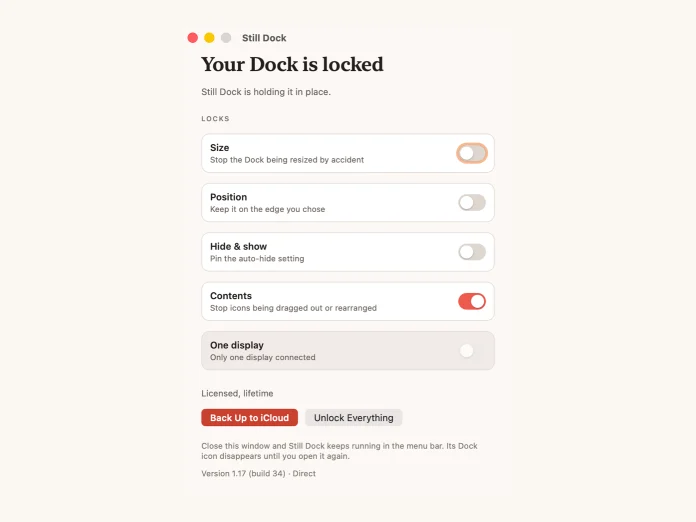
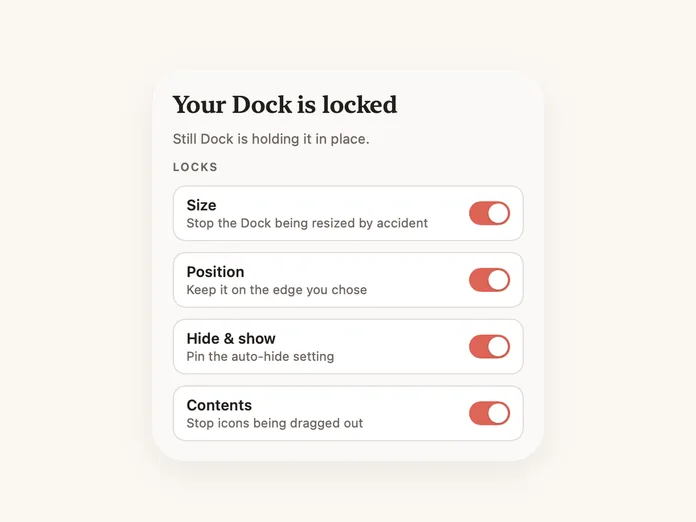
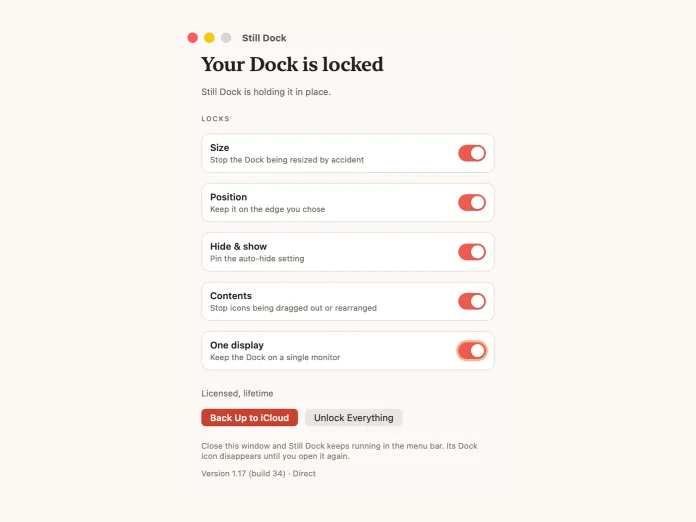
Still Dock adds the switch: four locks in one menu, changed without opening Terminal, and it remembers the Dock you had before and puts it back when you're done. If you prefer the commands, run them.
Is there a trial?
Yes, on Annual: a 3-day trial, with the complete app and every lock working, so you can be sure before the first payment. Cancel inside the 3 days and you are not charged.
Without a plan, locking your Dock's size comes with Light, with no trial clock and no account. The other locks, the keyboard guards, profiles and iCloud backup need a plan. On Light, the iPhone app, Siri, ChatGPT and Claude can switch the size lock too, and signing in keeps a backup of your settings.
Monthly and lifetime have no trial. A month is already the shortest commitment there is, and lifetime is a single payment. See Plus.
What is the permanent lock, and can I undo it?
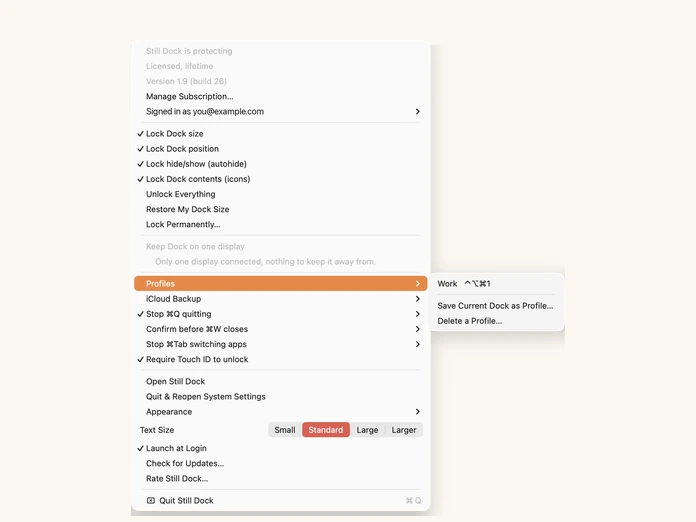
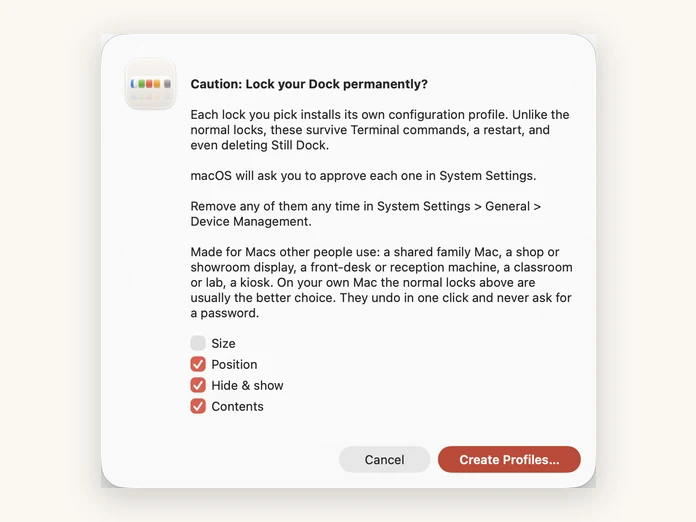
Every lock you pick installs its own macOS configuration profile. Unlike the normal locks, these profile locks survive Terminal commands, a restart, and deleting Still Dock. They are built for Macs other people use, like a shared family Mac, a shop or showroom display, a front desk, a classroom or a kiosk.
macOS asks you to approve each one in System Settings. You can remove any of them at any time in System Settings, General, Device Management.
On your own Mac the normal locks are usually the better choice. They undo in one click and never ask for a password.
I purchased it on the App Store. Can I use the direct download too?
Yes, and the other way round. One purchase covers both versions, so purchase it whichever way you prefer and use either build, or both, on the Macs you own.
There is no license key to find or type. Sign in with the email you paid with and everything unlocks. If you purchased through Apple, the App Store version unlocks on its own.
Worth knowing because the two builds are not identical. The direct download does more, so a lot of people purchase through Apple for the convenience and then use the direct build on their main Mac.
Why does the App Store version do less?
Apple's rules for App Store apps are stricter than for apps you download directly, and some of what Still Dock does isn't allowed under them.
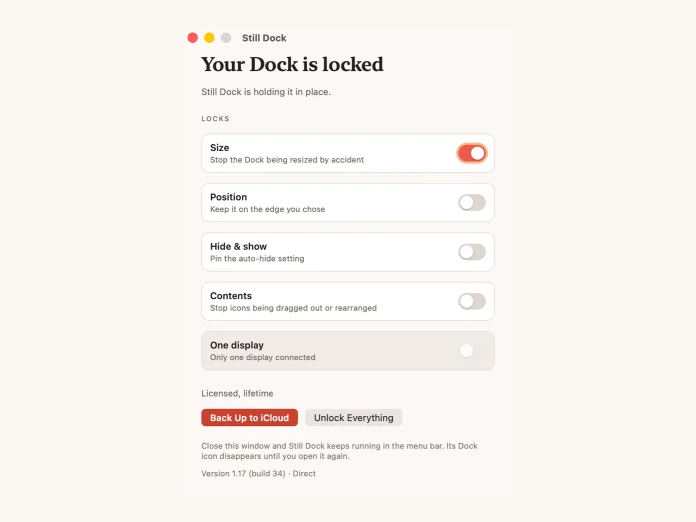
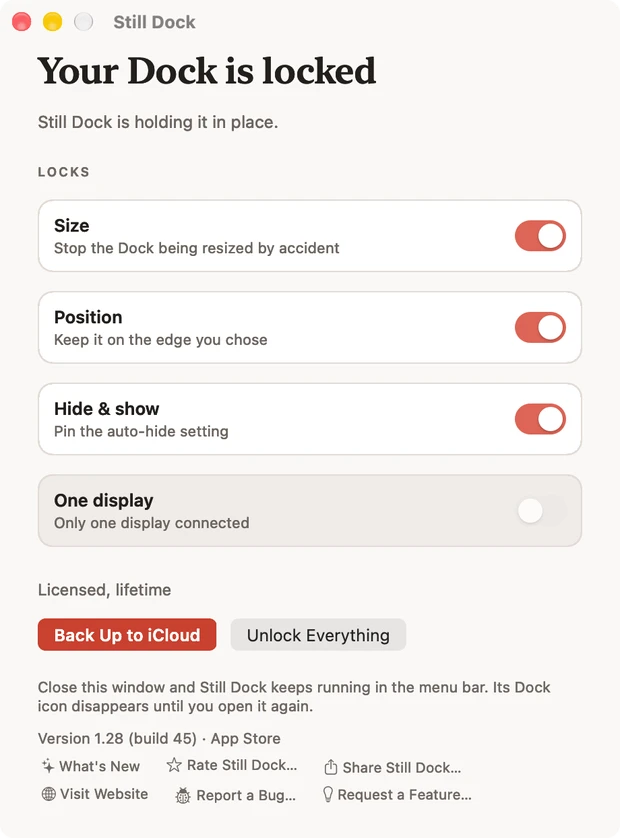
Both versions lock size, position and hide & show, keep the Dock on one display, and unlock with Touch ID. Direct download adds the contents lock, profiles and hotkeys, the permanent lock that survives deleting the app, and full iCloud backup of your Dock as well as your locks. The App Store version also stops working while the Dock is set to auto-hide, and its locks work by keeping your pointer away from the divider, so a determined drag can still get through. Its locks need no permission, and it asks for Accessibility only if you turn on Presenting, Follow the mouse or Move Dock to This Screen.
Does either version need permissions?
Both versions ask for Accessibility only when you turn on a feature that needs it, and everything else keeps working if you say no. Nothing Still Dock sees through this permission leaves your Mac.
The App Store version asks for it for three features: Presenting, Follow the mouse, and Move Dock to This Screen. Presenting presses ⌥⌘D for you to hide and show the Dock. The other two move the pointer to the bottom of a display for a moment, which is how macOS moves the Dock there. The locks and the ⌘Q and ⌘W protection need no permission.
The direct download asks for it for four features: keeping the Dock on one display, the ⌘Q and ⌘W protection, Follow the mouse, and Move Dock to This Screen. The four Dock locks and Presenting need no permission. macOS requires Accessibility before any app is allowed to stop a gesture or a keystroke reaching another app, or to move the pointer for you.
What does Still Dock collect, and why?
Very little, and only what a feature needs. On your Mac, Still Dock keeps which locks you turned on and a snapshot of your Dock, so it can put everything back.
To check a purchase it sends a random install ID and the app version. Signing in sends your email address, so we can send you a code. The iPhone remote reads your Mac's name and which locks are on, through your own iCloud or through your Still Dock account when you sign in. This website counts visits with Microsoft Clarity.
Still Dock never records what you type or where you click, and we never sell or share your information or use it for advertising. Every request is listed in the privacy policy.
macOS says “This setting has been configured by a profile.” Is that bad?
No. That's just macOS's standard wording for a Dock setting that's currently locked. It's Still Dock, and it disappears the moment you unlock.
What happens if I delete the app while things are locked?
Everything unlocks. Still Dock reverts every setting when it quits and when it's removed. It will never leave your Dock stuck.
Will it change how my Dock looks?
No. It doesn't theme, replace or add anything. Your Dock looks exactly as it does now; it just stops moving.
Does it work on multiple monitors?
Yes, and it is one of the reasons people reach for it. macOS moves the Dock to whichever display your cursor last touched the bottom of, which is why it keeps disappearing from the screen you wanted it on. Pin it to one display and it stays there.
Do my settings follow me to a new Mac?
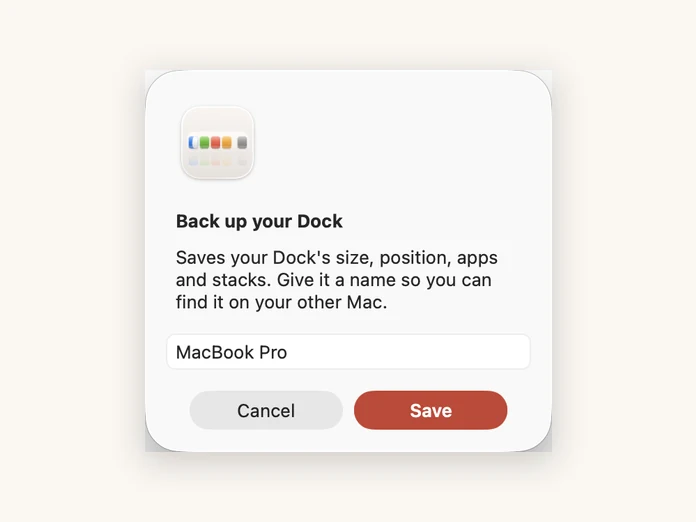
Yes. Sign in on another Mac and your setup comes back without rebuilding it by hand.
The direct download backs up your whole Dock. The App Store version backs up which locks you turned on, but not the Dock itself.
How many Macs does one license cover?
Every Mac you personally own or use, up to 5. It's licensed to you, and 5 covers every Mac a person realistically uses. The limit is there to stop a single license being rolled out across an office.
Seats free up on their own: a Mac that stops checking in releases its seat after 60 days, so replacing a machine costs you nothing and needs no email.
Can I use it across my team?
Not on a personal license. If you want Still Dock on more than 5 Macs, or on machines your company owns, email hello@littlebirdtrading.com and we'll sort out volume licensing. Tell us roughly how many Macs and we'll come back with a price.
Which macOS versions?
Built for macOS 13 and later, on Apple silicon. Most of our testing is done on macOS 26.
How do I report a bug or ask for a feature?
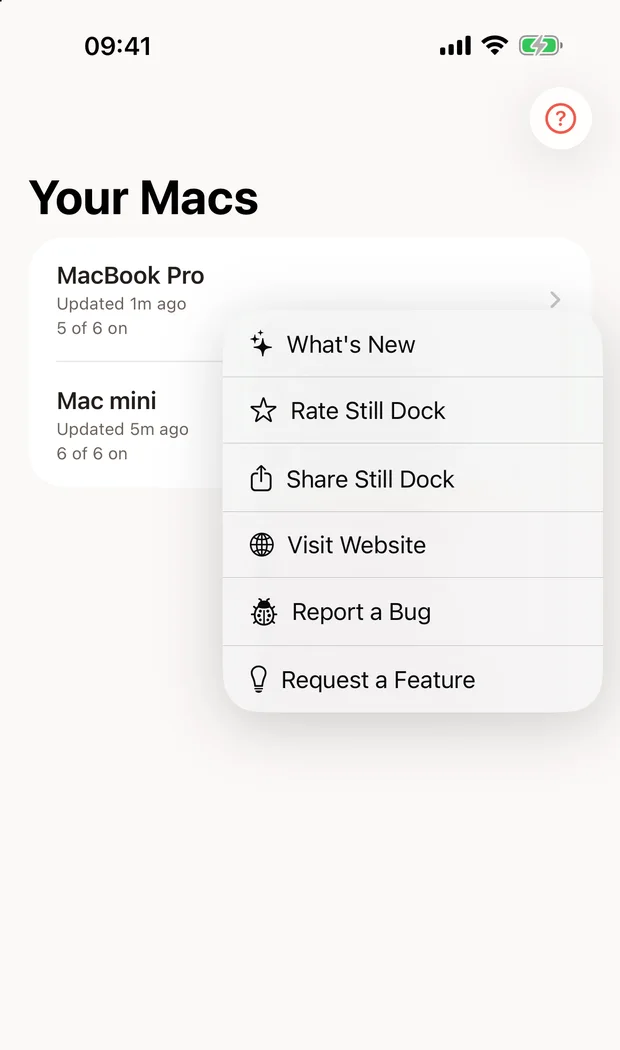
In Still Dock, choose Report a Bug or Request a Feature from the menu bar menu, the Help menu or the foot of the main window. Add a screenshot if it helps, and your email if you would like a reply. On iPhone, the same two are in Settings, behind the gear, and on Apple Watch they are in Help. What's New, Rate Still Dock, Share Still Dock, Visit Website and Use with ChatGPT, Claude and Cursor sit beside them. Or email hello@littlebirdtrading.com.
Can ChatGPT, Claude or Cursor lock my Dock?
Yes. On Light, ChatGPT, Claude, Codex and Cursor can switch your Dock's size lock. With Still Dock Plus they switch every lock. Add the Still Dock plugin, sign in with your Still Dock email, and say "lock my Dock". Your Mac switches the lock, and asks for Touch ID or your password first if you have that turned on. Setup is in the plugin guide.
Can I sign in with Apple?
Yes. Next to the email code, Still Dock offers Sign in with Apple on the Mac and on iPhone. Choose it and Apple shares the email address your purchase is under, or a private one. If Apple hides your address, no purchase will match it, so sign in with the email address you purchased with. The email code still works everywhere.
What stops the Dock moving to another monitor?
Keep the Dock on one display, a Plus lock in both versions of Still Dock. macOS moves the Dock to whichever display your pointer last touched the bottom of; with the lock on, it stays on the display you pick. See keeping the Dock on one monitor.
Can I lock the Dock from my iPhone or Apple Watch?
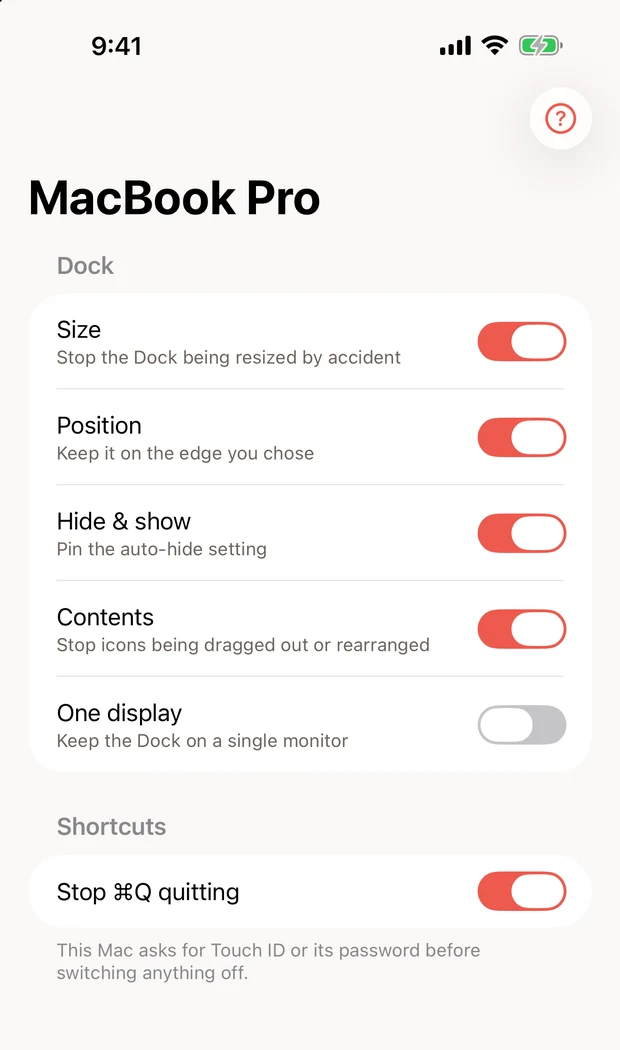
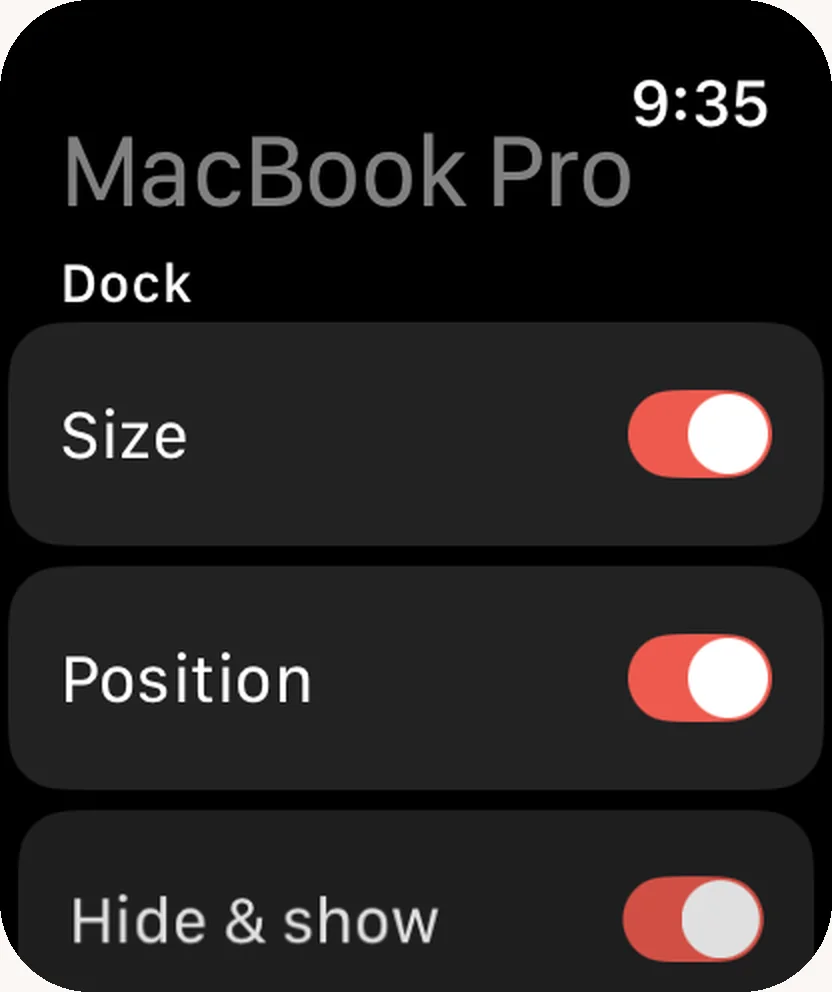
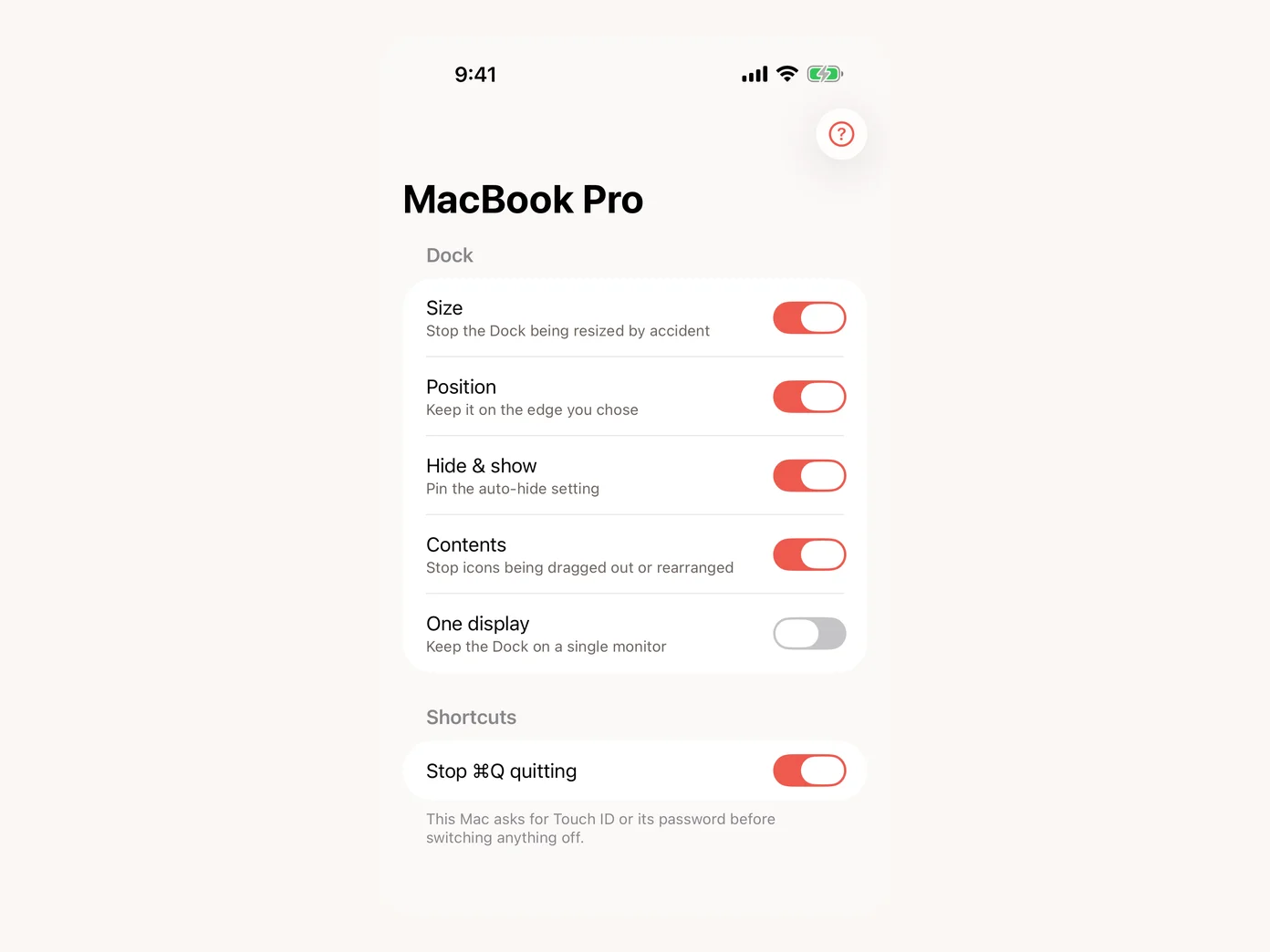
Yes. Still Dock for iPhone and Apple Watch lists every Mac running Still Dock. On Light, the iPhone app and Siri switch the size lock. With Plus they switch every lock and Stop ⌘Q quitting, and Apple Watch joins in. See controlling your Dock from your iPhone.
Can it stop Cmd Q quitting Chrome or Safari?
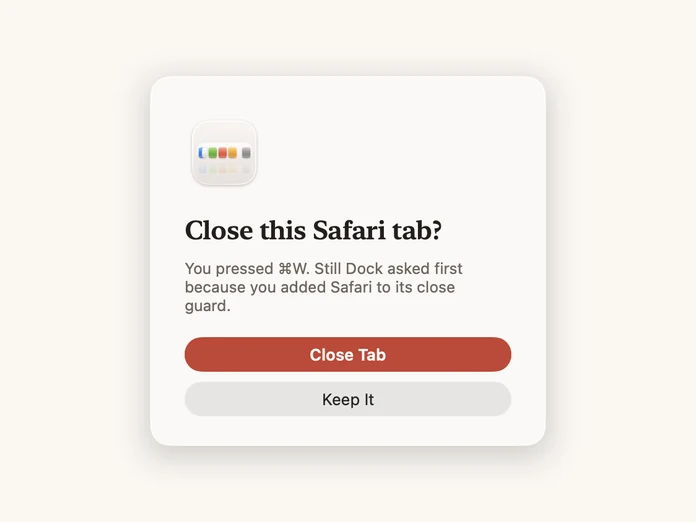
Yes. Stop ⌘Q quitting protects the apps you choose, browsers included, and leaves ⌘Q working everywhere else. The direct download lets you choose: hold ⌘Q, or press it twice. The App Store version asks you to press it twice. Part of Plus. See stopping Cmd Q in your browser.
Does it work on managed or school Macs?
Yes. For Macs other people use, the direct download's permanent lock installs a standard macOS configuration profile for each lock, which stays in place after a restart and even after Still Dock is deleted. If someone else manages your Mac, check with them before adding profiles. For more than 5 Macs, email hello@littlebirdtrading.com about volume licensing. See locking the Dock in a classroom.
Can someone else at my Mac unlock it?
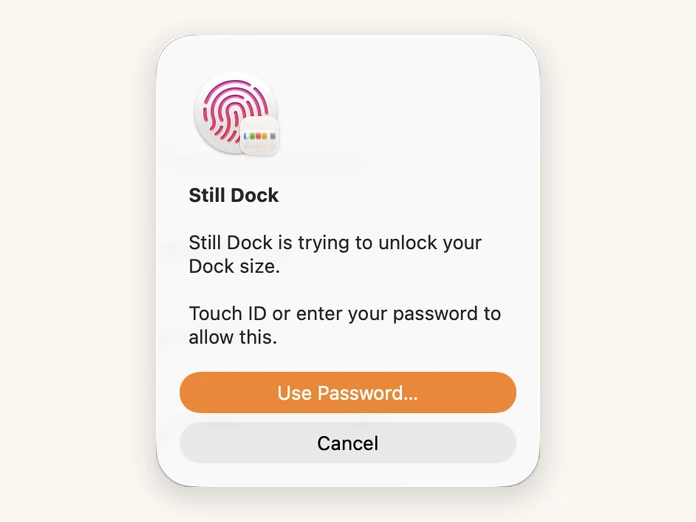
Only if you let them. Turn on Touch ID to unlock (Plus) and switching any lock off asks for Touch ID or your Mac's password first. Without it, anyone at the Mac can switch a lock off from the menu bar. From your iPhone, turning something off asks for Face ID too.
How is Still Dock different from DockLock?
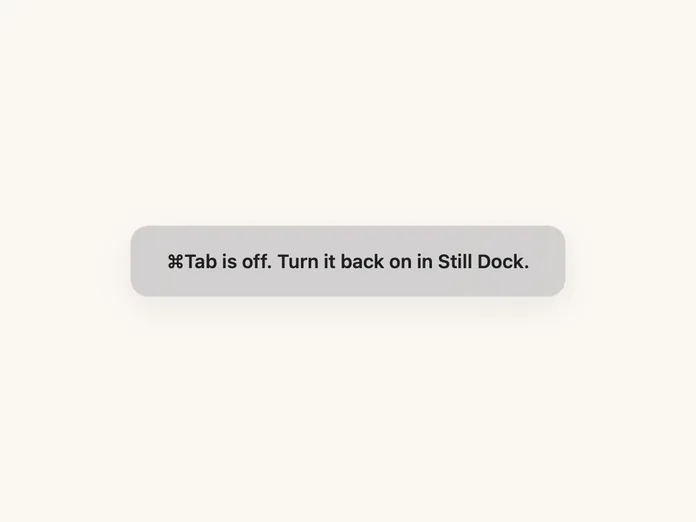
Both lock the Dock. Still Dock locks the size on Light with no trial, adds the Cmd Q, Cmd W and Cmd Tab guards, an iPhone and Apple Watch app, Siri, and a plugin for ChatGPT, Claude and Cursor. The full side by side is in DockLock vs Still Dock.
Do the locks survive a restart or a macOS update?
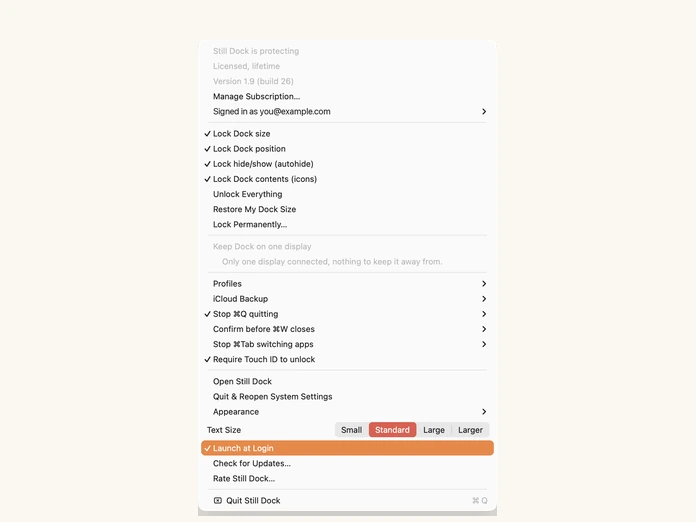
Yes. Still Dock applies your locks again every time it starts, and Launch at Login starts it with your Mac. The permanent lock in the direct download is a configuration profile, which stays in place even while Still Dock is not running.
Can I pay once?
Yes. Lifetime is a single $89.99 payment on this site, or $93.99 on the Mac App Store, and covers every future version. See Plus.
Can I hide the Dock while presenting?
Yes, with the direct download: turn on auto-hide in System Settings, then lock hide & show so nothing turns auto-hide back off in the middle of your presentation. The App Store version pauses its locks while the Dock is set to auto-hide.
Is Still Dock in my language?
Still Dock is in twenty-five languages as well as English: Spanish (Spain and Latin America), French, German, Italian, Portuguese (Brazil and Portugal), Dutch, Simplified Chinese, Traditional Chinese, Japanese, Korean, Hindi, Thai, Vietnamese, Hebrew, Arabic, Indonesian, Polish, Swedish, Turkish, Russian, Danish, Norwegian and Finnish. It follows the language your Mac is set to, and this website is in all of them too. Arabic and Hebrew read right to left.