Short answer: share a single window, and the Dock never appears in the share. If you need to share the whole screen, press Option Command D to hide the Dock first, and press the same keys again when you finish.
Still Dock adds a Presenting switch that hides the Dock and keeps your other locks in place, and turns everything back afterwards.
Option 1: share a window, not the screen
Zoom and Microsoft Teams both let you pick what to share. When you choose one window, the people watching see that window only. Your Dock, menu bar, notifications and other apps stay private.
- Zoom: click Share, then pick the app window you want from the list. Choosing Desktop or Screen shares everything, Dock included.
- Teams: click Share, then choose Window and pick the app. Choosing Screen shares everything.
This is the cleanest fix and costs nothing. The catch: you have to switch the share each time you move to another app, which is awkward in a demo that jumps between apps.
Option 2: hide the Dock with Option Command D
Press Option Command D and macOS turns on "Automatically hide and show the Dock". The Dock slides away and only comes back when your pointer touches the bottom edge. Press the same keys again to turn it off.
The same switch lives in System Settings › Desktop & Dock. Two things catch people out:
- The Dock still pops up when the pointer reaches the edge, so a slip during the call shows it to everyone.
- If you locked hide and show with
autohide-immutable, the shortcut does nothing until you lift that lock. See locking the Dock without installing anything.
Option 3: Presenting mode in Still Dock
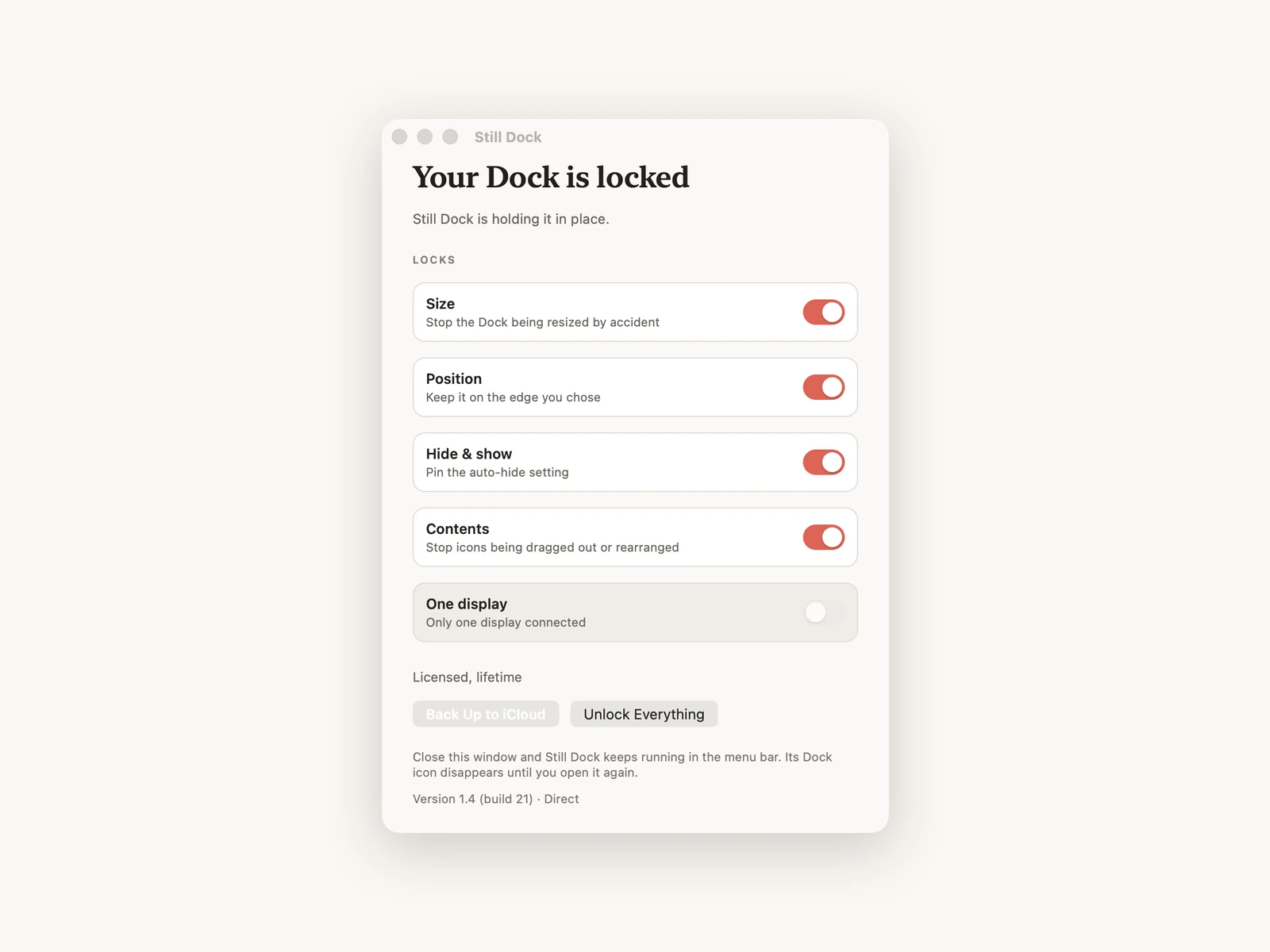
Still Dock puts a Presenting switch at the very top of its menu bar menu. Turn it on before the call and the Dock hides. Turn it off afterwards and the Dock comes back as it was. If your Dock was already set to hide before you started, the Dock stays hidden afterwards.
You can also flip it without touching the menu:
- Say "Start presenting with Still Dock" to Siri on the Mac, and "Stop presenting with Still Dock" when you finish.
- Use the Presenting switch in Still Dock for iPhone, handy when the Mac is already on the projector.
Presenting is part of Still Dock Pro.
Direct download and Mac App Store: one difference
The direct download changes the Dock's hide setting itself, and every other lock stays on while you present.
The Mac App Store version is sandboxed, so it presses Option Command D for you. To press keys it needs Accessibility permission, and it asks for that only the first time you turn Presenting on, with a one-line reason. Say no and it shows a reminder to press Option Command D yourself. In that version the other locks pause while the Dock is set to hide, and they come back when Presenting ends.
Before the call: a short checklist
- Turn on Do Not Disturb or a Focus, so notifications stay off the share.
- Close windows you would not want seen, even behind the app you plan to share.
- If you use two screens, share the screen without the Dock on it, or keep the Dock on one screen: see how to keep the Mac Dock on one screen.
Common questions
Does the Dock show in a Zoom recording?
Only if it is inside what you share. Share a single window and neither the live share nor the recording includes the Dock.
Does Presenting mode work with Google Meet, Webex and Slack huddles?
Yes. Presenting hides the Dock on the Mac itself, so it works the same whichever app is sharing.
Will my Dock settings be changed afterwards?
No. Turning Presenting off puts the hide setting back to what it was before you turned it on.
Presenting for a talk or a demo in a room? Lock your Mac Dock before a presentation covers the rest of the setup.