Short answer: before you present, hide the Dock (Option Command D), make your laptop or the main screen the one that keeps the Dock, and lock the Dock's size and position so a stray drag changes nothing.
Still Dock does the whole list with one Presenting switch, a Siri phrase or a tap on your iPhone.
What goes wrong on stage
- The Dock jumps to the projector. The Dock follows your pointer. Move to the bottom of the projected screen and it moves there, in front of your slides.
- It pops up over your slides. Keynote and PowerPoint play full screen, but a pointer at the bottom edge still brings the Dock up.
- A drag resizes the Dock. The divider in the Dock is a resize handle. Grab the divider by accident with a clicker or trackpad and the Dock grows or shrinks.
- Cmd Q quits the slideshow. Aim for Cmd W, hit Cmd Q, and the presentation app closes in front of the room.
The free way, ten minutes before
- Hide the Dock: press Option Command D.
- Pick the main display: System Settings › Displays › Arrange, drag the white menu bar onto your laptop screen. The Dock settles there.
- Lock size and position from Terminal:
Swapdefaults write com.apple.dock size-immutable -bool true defaults write com.apple.dock position-immutable -bool true killall Docktrueforfalseto undo after the talk. More in what killall Dock does. - Turn on the Chrome guard if your slides are in a browser: Chrome menu › Warn Before Quitting.
None of this stops the Dock moving to the projector. macOS has no setting for that.
With Still Dock
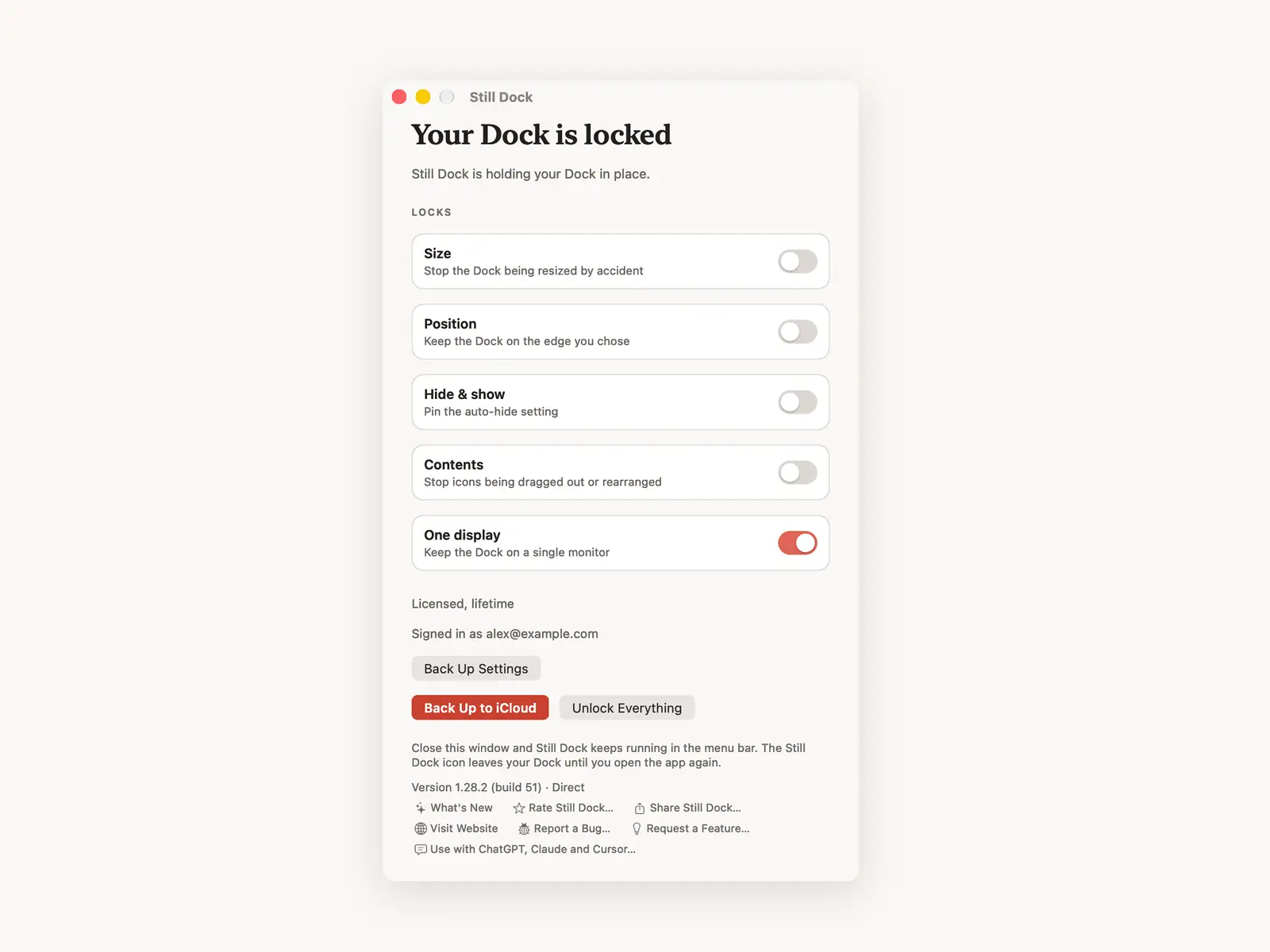
- Presenting, at the top of the menu, hides the Dock while you present and puts it back afterwards. Siri: "Start presenting with Still Dock".
- One display keeps the Dock on the screen you pick, so it never lands on the projector.
- Size and position locks stop a stray drag.
- Cmd Q protection makes a quit need a hold (direct download) or a second press (Mac App Store version) in the apps you choose.
Need to move the Dock during the talk? With "Hold Option to Move the Dock Once" chosen, hold Option for a moment and the Dock can move one time, then the position lock comes back by itself.
The size lock is free. Presenting, One display and the other locks are part of Pro. In the Mac App Store version, locks pause while the Dock is set to hide and come back after Presenting ends; the direct download keeps them on.
Common questions
Can I turn Presenting on from my phone?
Yes. Still Dock for iPhone has a Presenting switch, so you can do it from the lectern after the Mac is plugged in.
Does mirroring the display stop the Dock moving?
Yes. With mirroring there is only one desktop, so there is nowhere for the Dock to go. You lose presenter notes on a separate screen.
Will the locks still be on tomorrow?
Yes, until you switch them off. Presenting is the one switch meant to be turned off after the talk.
Sharing on a call? See hiding the Dock while screen sharing on Zoom and Teams.