Short answer: macOS has no kiosk mode outside device management. You can get close with a Standard user that logs in by itself, opens one app full screen, never sleeps, has Screen Time limits, and has its Dock locked by configuration profile.
1. A Standard account for the kiosk
Create a separate user in System Settings › Users & Groups and make it Standard, not Administrator. A Standard user cannot install most software, change system settings, or remove profiles without an admin password. Keep your admin account for setup.
2. Log in and open the app by itself
- Automatic login: System Settings › Users & Groups › Automatically log in as. This is unavailable while FileVault is on.
- Open at login: System Settings › General › Login Items, add the app or a web page saved as a web app.
- Full screen: put the app in full screen once; many apps remember full screen.
3. Never sleep
In System Settings › Lock Screen set the display to never turn off, and in Energy (or Battery on a laptop) stop the Mac sleeping. A schedule to restart nightly clears up memory leaks in long-running apps.
4. Screen Time limits
Turn on Screen Time for the kiosk user. Content & Privacy can limit websites and app types, and App Limits with "Always Allowed" can keep the Mac to the apps you choose. Set a Screen Time passcode so it cannot be switched off.
5. Lock the Dock
Visitors drag icons out, resize the Dock and move the Dock. The four Dock keys stop that:
defaults write com.apple.dock size-immutable -bool true
defaults write com.apple.dock position-immutable -bool true
defaults write com.apple.dock contents-immutable -bool true
defaults write com.apple.dock autohide-immutable -bool true
killall Dock
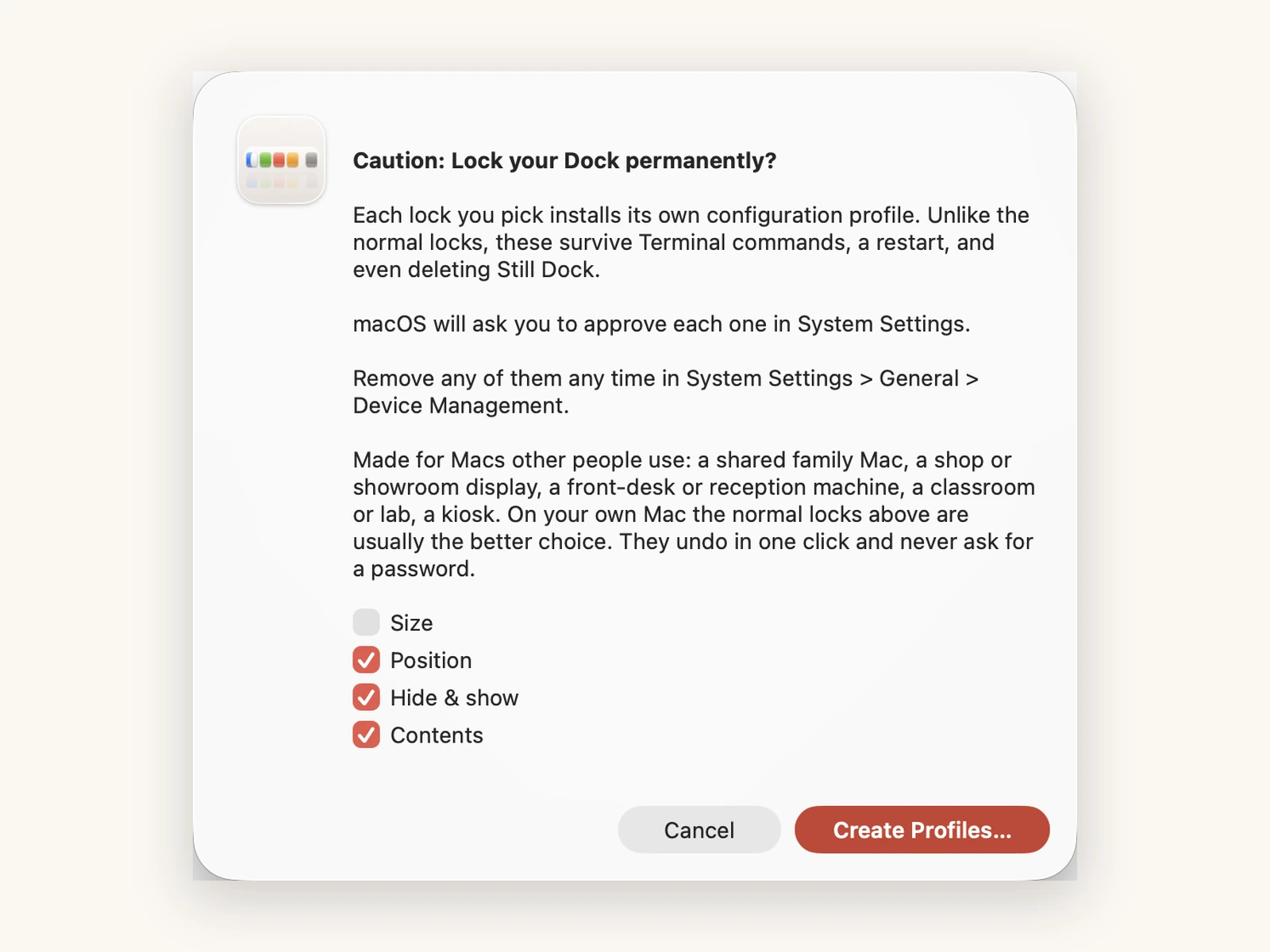
Run them as the kiosk user. Anyone who reaches Terminal can reverse them, which is the weak point. Delivered as a configuration profile, the same settings survive Terminal, a restart and deleting the app that set them. Still Dock's Lock Permanently (direct download, Pro) installs one profile per lock for you; macOS asks you to approve each in System Settings, and you remove them in System Settings › General › Device Management.
6. Guard the shortcuts
Cmd Q closes the kiosk app, and Cmd Tab switches away from the kiosk app. Still Dock's direct download guards Cmd Q, Cmd W and Cmd Tab in the apps you choose. See disabling Cmd Tab.
Where this stops
A determined person with physical access can still restart into recovery, use Force Quit, or unplug the Mac. If you run many kiosk Macs, device management is the right tool: see locking the Dock on managed Macs.
Common questions
Does Still Dock work on a Standard account?
Yes. Install Still Dock with an admin account, then set the locks while logged in as the kiosk user. Dock settings are per user.
Can I hide the Dock completely?
You can turn on auto-hide and lock it with the hide and show lock. The Dock still appears when the pointer reaches the edge.
What about a front desk or showroom?
See locking the Dock on a front desk Mac and on a shop or showroom Mac.